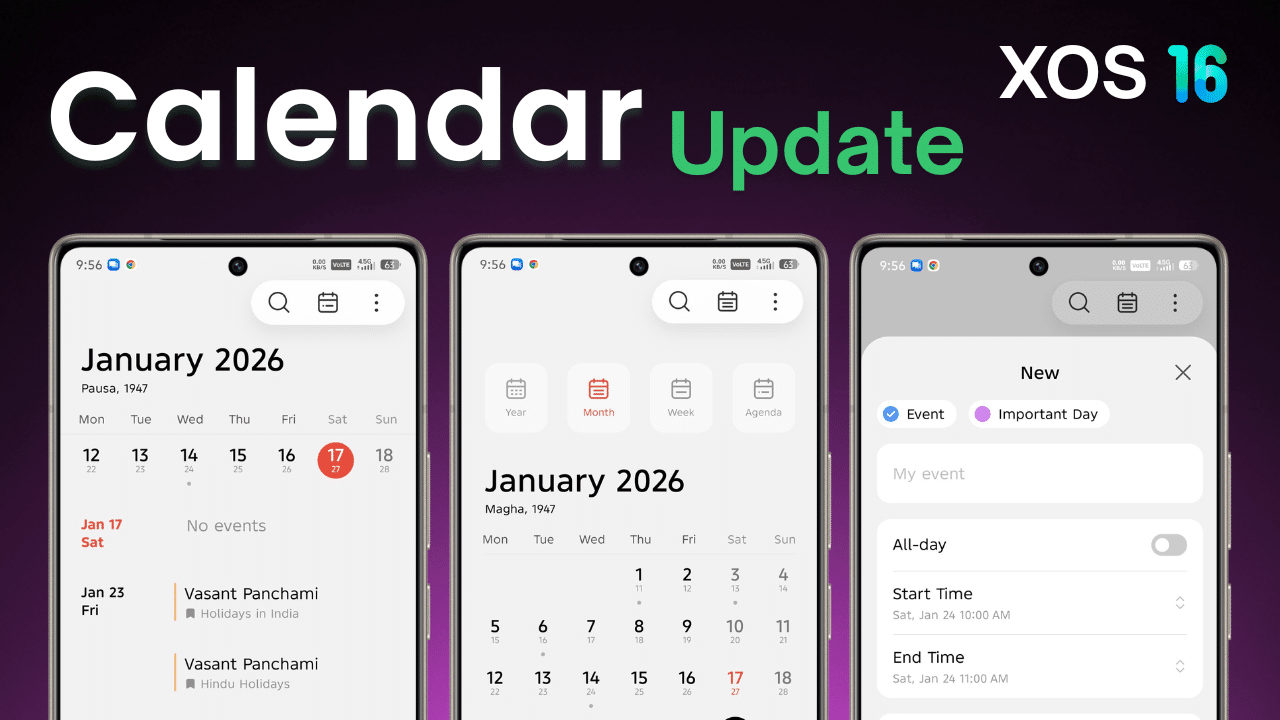
In HiOS 15 and XOS 16 have come with many System apps Update . In 2026, these apps will receive regular XOS App Updates to improve performance, fix bugs, and add small useful features and also big Update is UI Update. This article will provide Latest version of Calendar app based on XOS 16 and HIOS 16 and also help how to install the app update, how to uninstall it if needed, and what precautions users must take before updating. Okey Lets Start
Table of Contents
| App Name | Calendar |
| Version | 16.0.0.094 |
| Last Update | 16/01/2026 |
| Support | Tecno and infinix both mobile |
| Based | HiOS 16, XOS 16 |
Steps to Install XOS 16 Calendar App Update (Official Method)
Always install app updates using official sources only.
Follow these steps:
- Open Settings on your phone
- Go to Apps and Click on Apps Update
- Check for available app updates
- Tap Update on Calendar app
- Wait until update is completed
or
If You are not Show XOS 16 Calendar Update Do’t worry it comes with XOS 16, Android 16 Update Similar in tecno mobile Comes with HiOS 16 and Android 16 Update . Follow thease Steps If You are not Showing Update
- Download the Calendar App through this Article
- Tap Install on Calendar app
- It will be Update within few second
- Wait until update is completed
📌 Tip:
- Use stable internet while downloading
- Do not close the app while updating
Steps to Install XOS 16 Calendar App Update
If you cant need new and latest version or you dont like it or you are facing some issue with latest version you decide to uninstall it so you can unistall new version.
Before Updating Apps (Backup Required)
If you are using Loewest version of Tecno and Infinix mobile it may be not install or not App not working or App crash problem so avoid thease situation and prevent data we always recomend Before updating XOS apps, backup is very important, especially if the app is important to you.
Install App Backup App for Avoid to loose your old version of Calender App.
Method 1: Uninstall App Updates (Recommended)
- Go to Settings
- Open Apps
- Select the updated app
- Tap Uninstall Updates
- Confirm the action
This will restore the app to its previous version.
Warning About Old or Unsupported Apps
After installing the latest XOS app update:
- Some old apps may stop working
- Some apps may crash or not open
- This happens when the app does not support the new update
This will restore the app to its previous version.
What to Do If App Is Not Working After Update?
If an app is not running properly after update:
- Clear app cache
- Restart your phone
- Check for new app update
If still not working:
👉 The app is not supported yet
👉 Wait for official fix or update
Final Words
XOS 16 App Updates in 2026 are meant to improve daily phone usage, but users must update apps carefully. Always take backup, update apps only from official sources, and never force unsupported updates. If an app stops working, the best solution is to wait for official app support or uninstall the update safely.