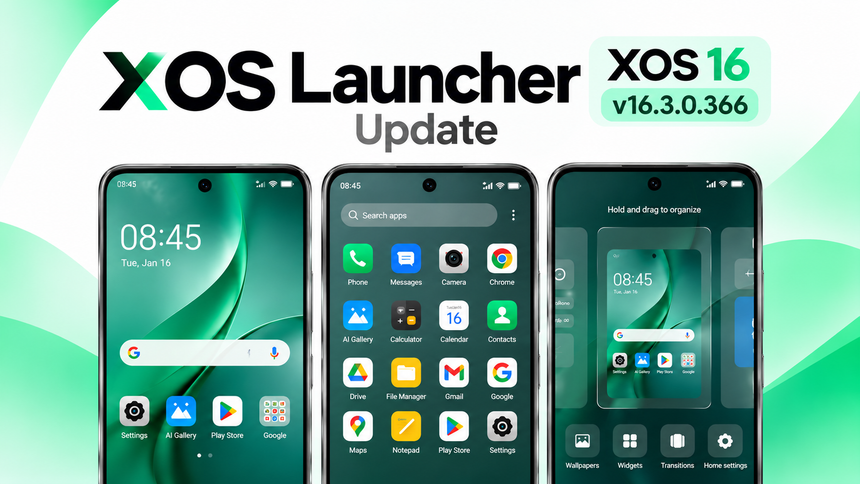
Infinix users can now try the latest XOS Launcher update on supported phones. If your Infinix phone is running a newer version of XOS 16, this launcher controls most parts of your home screen, such as app icons, folders, widgets, wallpapers and the app drawer.
- XOS Launcher – Latest Version Details (2026)
- Download XOS 16.3 Launcher Update
- Steps to Install XOS Launcher 16.3 Update (Official Method)
- Steps to Install XOS 16 XOS Launcher App Update (Manual Method)
- Before Updating XOS Launcher (Backup Recommended)
- Steps to Uninstall XOS Launcher16.3 Updates (Recommended)
- Warning About Old or Unsupported Devices
- What to Do If XOS Launcher Is Not Working After Update?
- Final Words
The latest public XOS Launcher APK available at the time of writing is version 16.3.0.366 The APK is around 32.90 MB and is made for Android 16 or newer devices.
The update does not bring a completely different launcher. The official changelog mainly mentions improvements to the user experience. This means the update is more focused on making the launcher work better and fixing small problems.
XOS Launcher – Latest Version Details (2026)
| Details | Information |
|---|---|
| App Name | XOS Launcher |
| Latest Version | 16.3.0.366 |
| Last Updated | 16/09/2026 |
| Supported Devices | Supported Infinix smartphones |
| Based On | XOS 16 |
| Android Version | Android 16+ |
| APK Size | Around 32.90 MB |
This update focuses on faster home-screen performance, smoother animations, better app organization, UI smoothness, and bug fixes.
Download XOS 16.3 Launcher Update
- Direct Download: Available via official system update / app update section
- GDrive Download: Provided only for users who do not see the update officially
Note
Note: This XOS Launcher 16.3.0.366 APK can be installed on Infinix phones running XOS 16 based on Android 16 or phones that have recently received the XOS 16 update. Older devices running previous XOS/Android versions are not compatible, and the APK will not install on them.
Steps to Install XOS Launcher 16.3 Update (Official Method)
Always install system app updates using official sources only.
Follow these steps:
- Open Settings on your phone
- Go to Apps
- Tap on App Updates
- Check for available updates
- Find XOS Launcher
- Tap Update
- Wait until the update is completed
If You Are Not Seeing the XOS Launcher Update
Do not worry. Some updates roll out with XOS 16 / HiOS 16 and Android updates and may not be available for every device at the same time.
Follow these steps:
- Download the XOS Launcher APK from this article
- Tap Install
- Allow installation if your phone asks for permission
- The launcher will update within a few seconds
- Wait until installation is completed
📌 Tips:
- Use a stable internet connection
- Do not close the installation screen
- Ensure your phone has enough free storage
- Ensure the APK is compatible with your Android version
- Keep your battery above 30%
Steps to Install XOS 16 XOS Launcher App Update (Manual Method)
If you want the latest XOS Launcher version urgently, or the official update is not available on your device, you can try installing the APK manually.
- Download the XOS Launcher 16.3.0.366 update package
- Install it normally
- Wait for the installation to finish
- Restart your phone after installation
Before Updating XOS Launcher (Backup Recommended)
If you are using an older Tecno or Infinix device, the latest XOS Launcher version may not install properly or could cause compatibility issues.
To avoid problems:
- Backup your important data before updating
- Make sure your device supports the new launcher version
- Keep a copy of the previous launcher version if possible
- Do not force-install the APK on unsupported devices
Your home-screen layout, widgets, folders, and launcher settings may also behave differently after a major update.
Steps to Uninstall XOS Launcher16.3 Updates (Recommended)
If you don’t like the new version or experience problems after updating, you can try reverting the launcher to its previous version.
Steps:
- Open Settings
- Go to Apps
- Select XOS Launcher
- Tap the three-dot menu if available
- Select Uninstall Updates
- Confirm the action
This can restore the launcher to its previous installed version, depending on your device and XOS version.
Warning About Old or Unsupported Devices
After installing the latest XOS Launcher 16.3.0.366 update:
- Some older devices may face compatibility issues
- The launcher may crash or become unresponsive
- Home-screen animations may not work correctly
- Some widgets or launcher features may not work
- The APK may refuse to install
These problems can occur because XOS Launcher versions are designed for specific XOS and Android versions.
In such cases, uninstalling the update or returning to the previous compatible version may be the safest option.
What to Do If XOS Launcher Is Not Working After Update?
If XOS Launcher is not working properly:
- Restart your phone
- Clear the XOS Launcher cache
- Check whether another official launcher update is available
- Make sure your phone is running a supported Android/XOS version
If the problem continues:
- The launcher may not be fully supported on your device
- Wait for an official bug-fix update
- Or uninstall the latest update if your device provides that option
Final Words
The XOS Launcher 16.3.0.366 update is focused on improving the overall home-screen experience, including UI smoothness, app organization, animations, and stability.
However, users should update carefully, especially on older Infinix devices. Always verify the APK source and compatibility before manually installing a system launcher update.
If XOS Launcher starts crashing or causing problems after the update, the safest option is to return to the previous compatible version or wait for an official update.
Updating carefully can help ensure a smoother and more stable XOS home-screen experience.