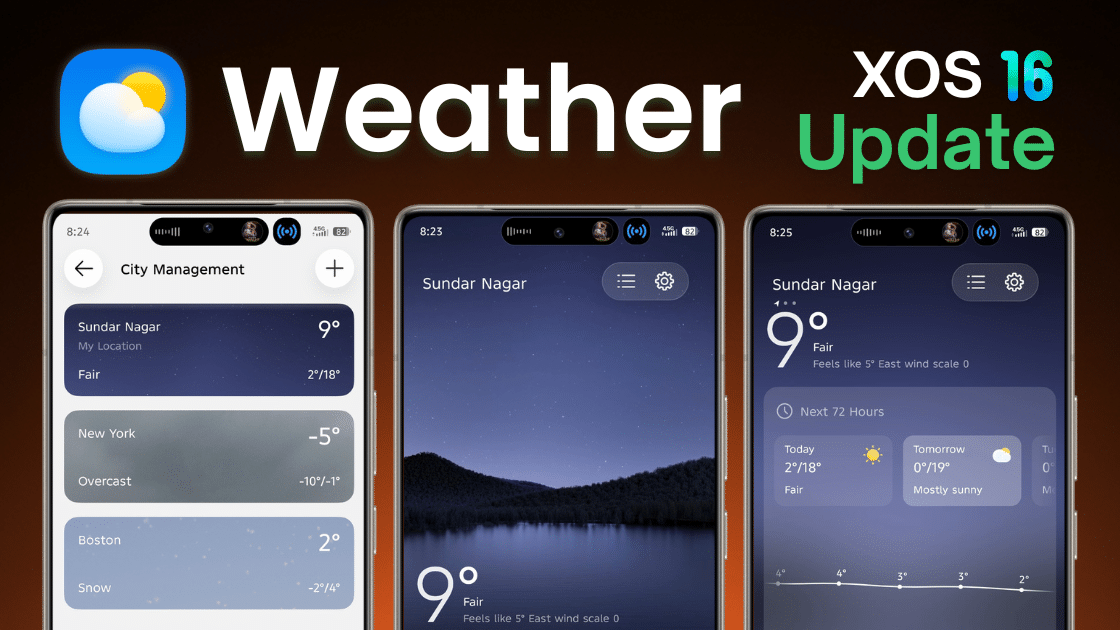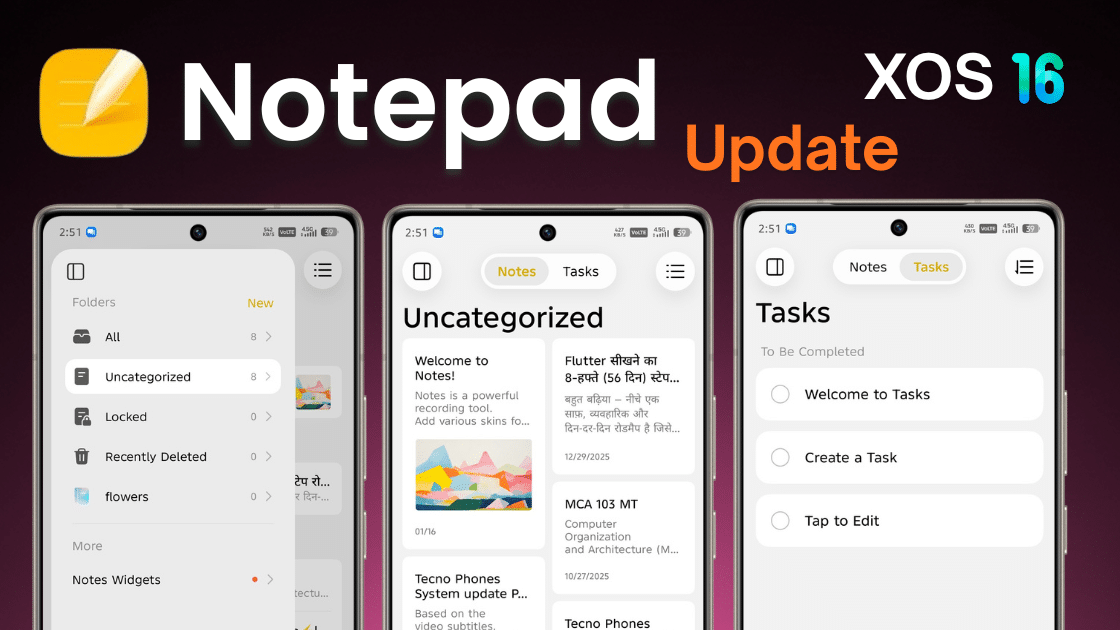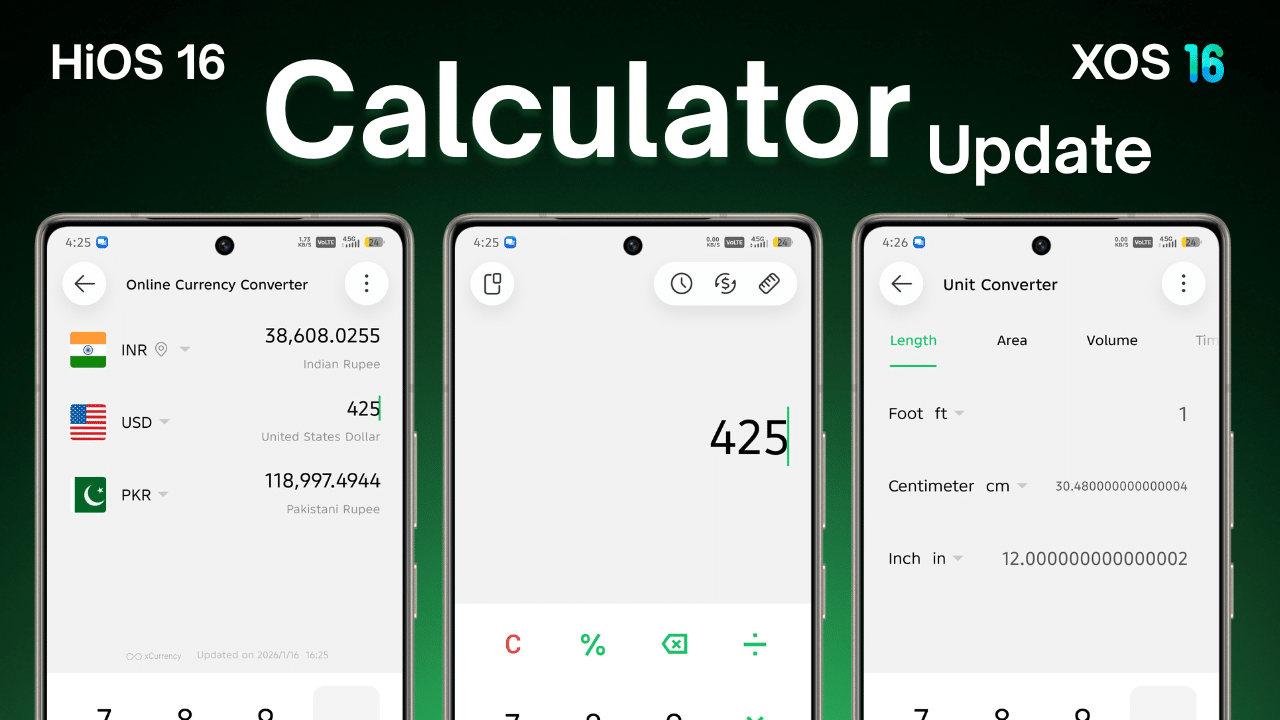
In HiOS 15 and XOS 16, many system apps have received major improvements. In 2026, these system apps are getting regular XOS app updates to improve performance, fix bugs, add useful features, and most importantly, introduce new UI updates.
Table of Contents
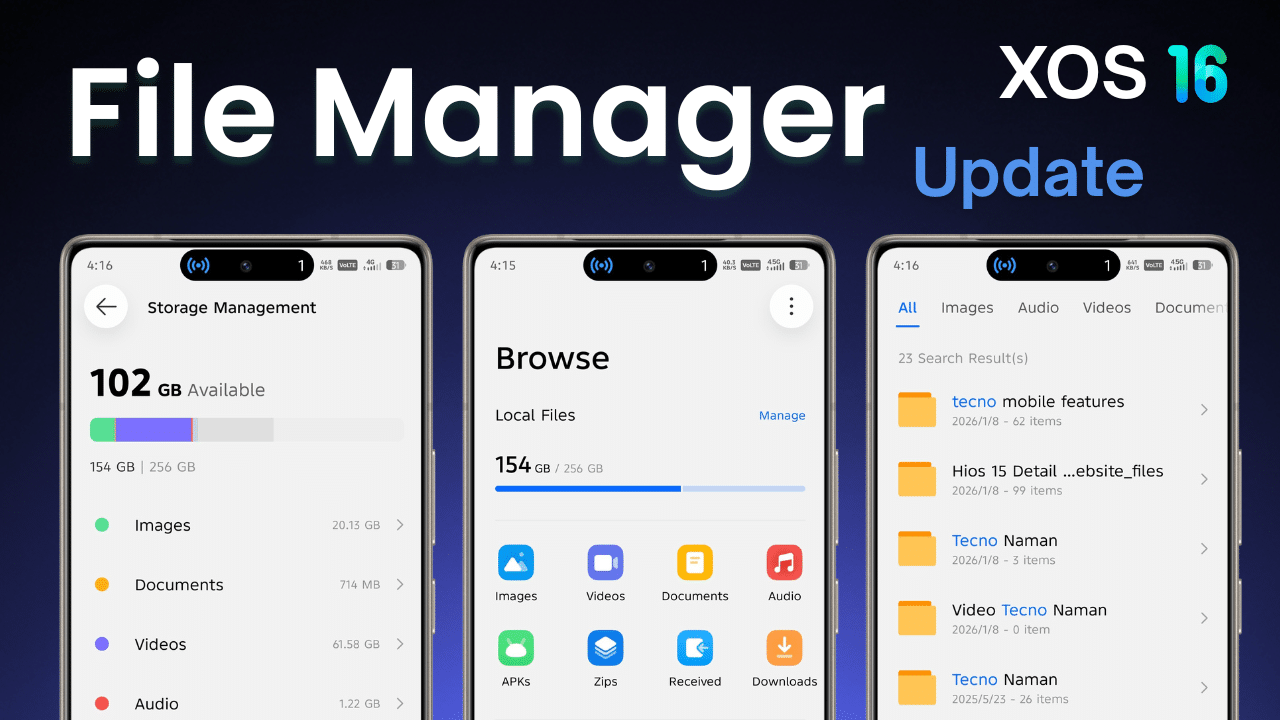
One of the most important system apps is the File Manager app. It is used daily to manage files, folders, downloads, documents, videos, and app data. This article provides complete information about the latest File Manager app update based on XOS 16 and HiOS 16, including how to install the update, uninstall it if required, and important precautions users must take before updating.
Okay, let’s start.
File Manager App – Latest Version Details (2026)
App Name: File Manager
Latest Version: 16.1.0.066
Last Updated: 16/01/2026
Supported Devices: Tecno and Infinix smartphones
Based On: HiOS 16 & XOS 16
Android Version: Android 16
This update focuses on faster file scanning, better folder organization, UI smoothness, and bug fixes.
Download Options
- Direct Download: Available via official system update / app update section
- GDrive Download: Provided only for users who do not see the update officially
Steps to Install XOS 16 File Manager App Update (Official Method)
Always install system app updates using official sources only.
Follow these steps:
- Open Settings on your phone
- Go to Apps
- Tap on App Updates
- Check for available updates
- Find File Manager
- Tap Update
- Wait until the update is completed
If You Are Not Seeing the File Manager Update
Do not worry. Some updates roll out with XOS 16 / HiOS 16 and Android 16 updates.
Follow these steps:
- Download the File Manager app from this article (trusted source only)
- Tap Install
- The app will update within a few seconds
- Wait until installation is completed
📌 Tips:
- Use a stable internet connection
- Do not close the installation screen
- Ensure battery is above 30%
Steps to Install XOS 16 File Manager App Update (Manual Method)
If you want the latest version urgently, or the official update is not available on your device:
- Download the update package
- Install it normally
- Restart your phone after installation
Before Updating Apps (Backup Required)
If you are using older Tecno or Infinix devices, the latest File Manager version may not install properly or may cause crash issues.
To avoid problems and data loss:
- Always backup your data before updating
- Especially important if you manage important files using File Manager
You can also use an App Backup tool to save the old version of the File Manager app.
Method 1: Uninstall File Manager App Updates (Recommended)
If you don’t like the new version or face issues, you can safely uninstall updates.
Steps:
- Open Settings
- Go to Apps
- Select File Manager
- Tap Uninstall Updates
- Confirm the action
✅ This will restore the app to its previous stable version.
Warning About Old or Unsupported Devices
After installing the latest XOS File Manager update:
- Some older devices may face issues
- The app may crash, lag, or not open
- This happens due to hardware or Android version limitations
In such cases, uninstalling the update is the best option.
What to Do If File Manager App Is Not Working After Update?
If File Manager is not working properly:
- Clear app cache
- Restart your phone
- Check for a new bug-fix update
If the problem continues:
- The app is not fully supported on your device
- Wait for an official fix or next update
- Or uninstall the update safely
Final Words
XOS 16 and HiOS 16 app updates in 2026 are designed to improve daily smartphone usage, but users should update apps carefully. Always take a backup, update only from official sources, and never force unsupported updates.
If the File Manager app stops working after an update, the safest solution is to uninstall the update or wait for official support.
Updating smartly ensures better performance and a smooth user experience.