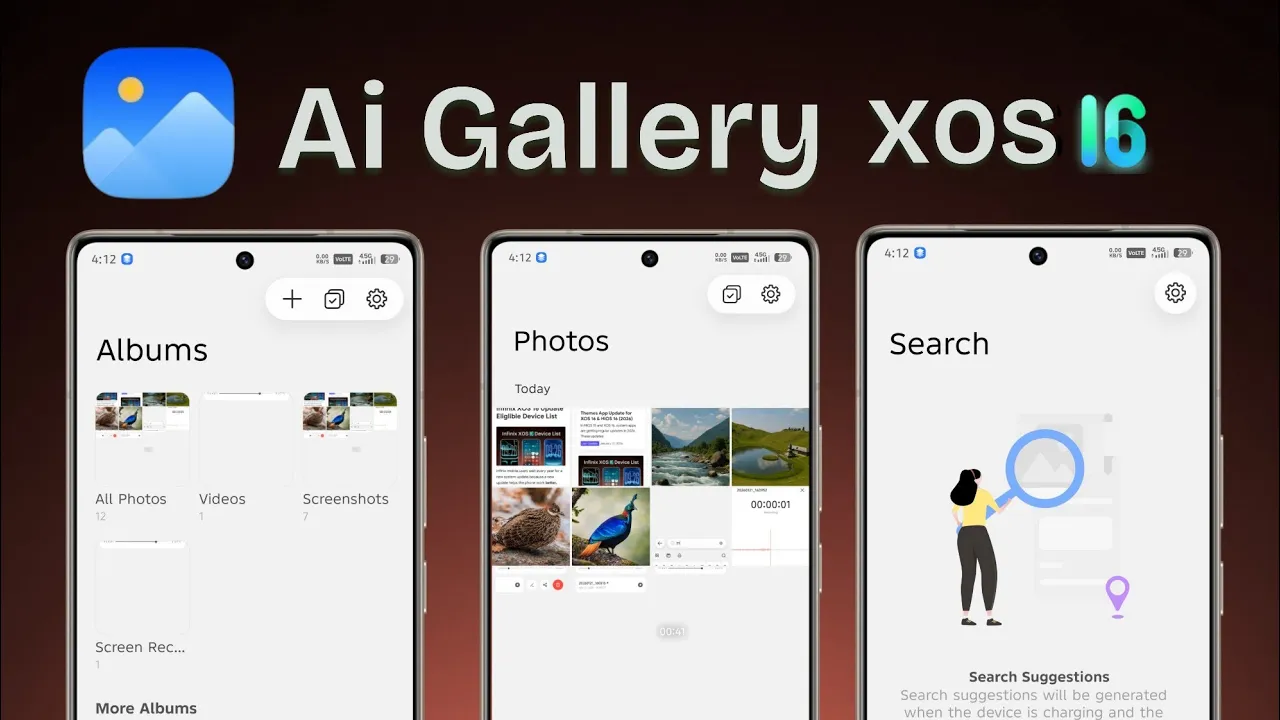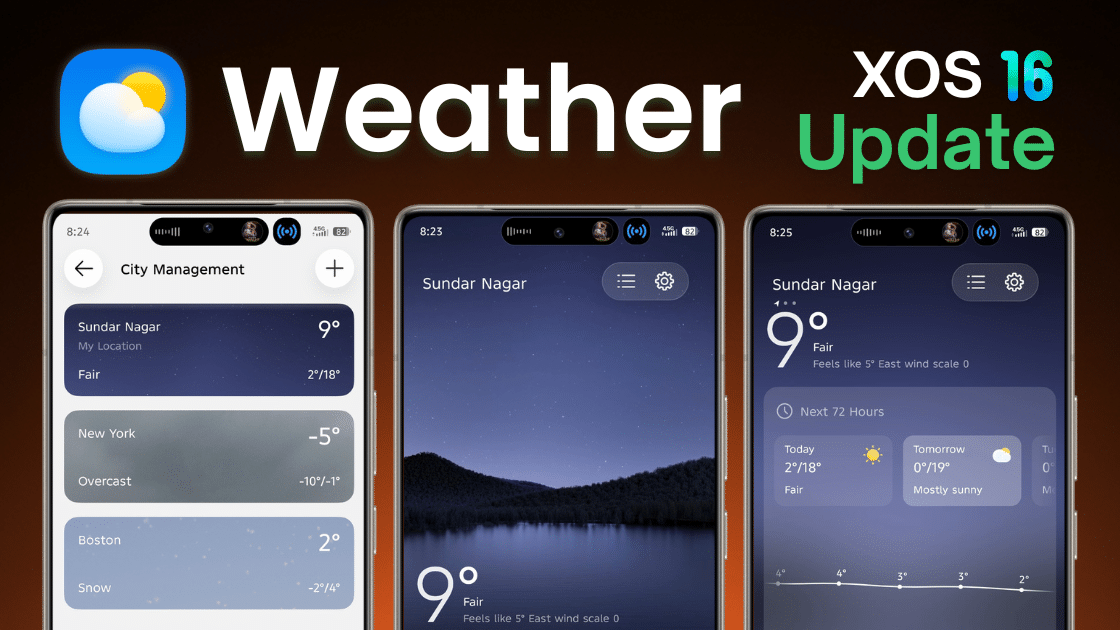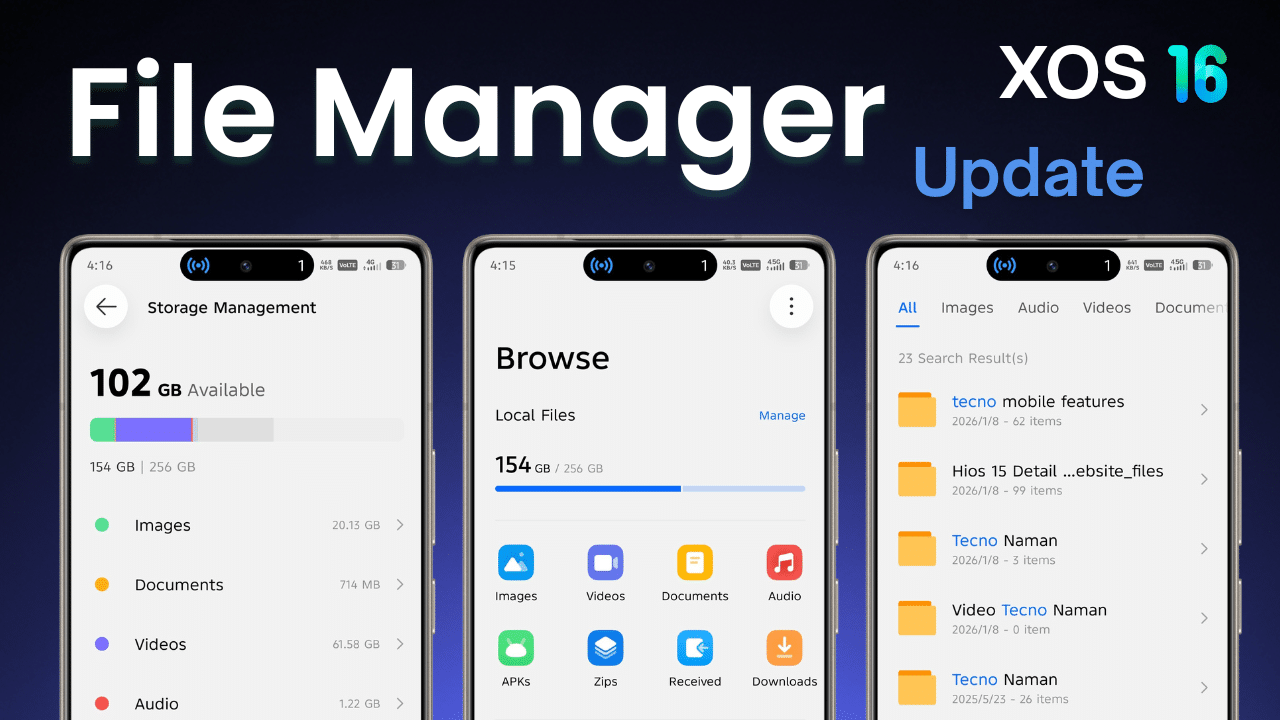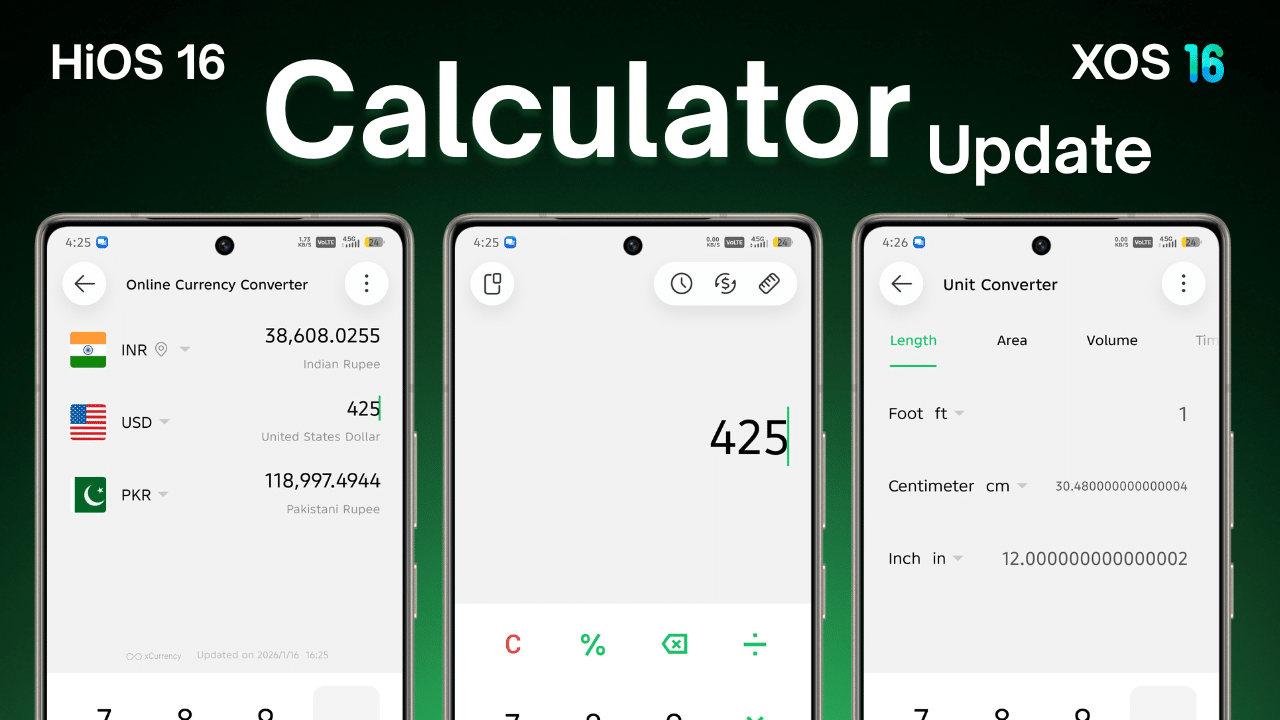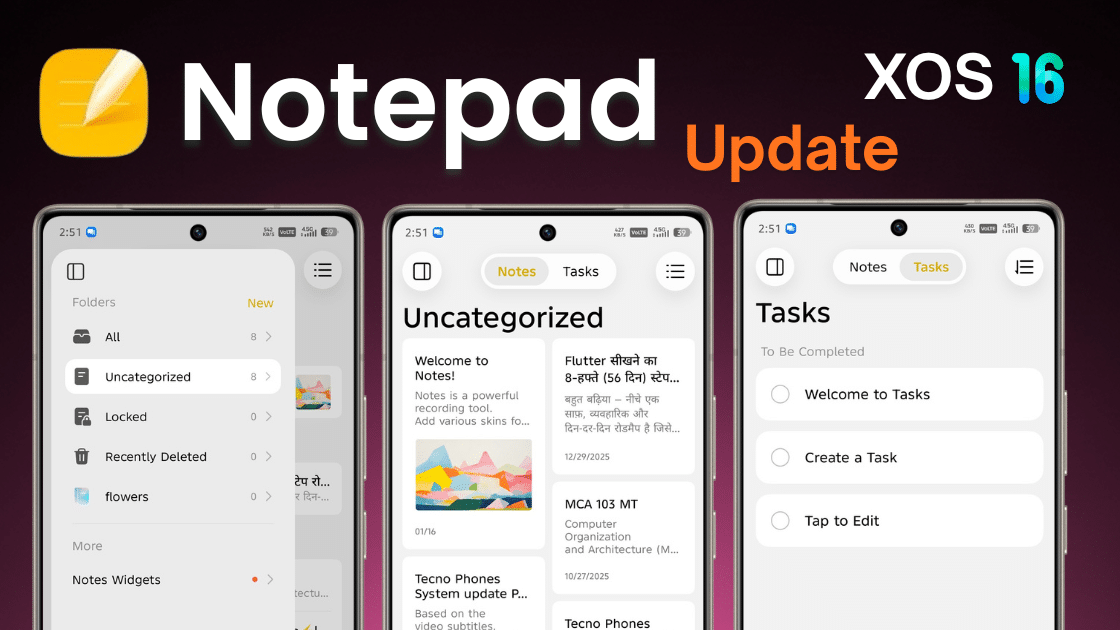
In HiOS 15 and XOS 16, many system apps have received major improvements. In 2026, these system apps are getting regular XOS app updates to improve performance, fix bugs, add useful features, and most importantly, introduce new UI updates.
One of the most important daily-use system apps is the Notes app. It is used to save quick ideas, important reminders, study notes, office work, passwords (temporarily), and daily to-do lists. Because of this, stability and data safety are extremely important.
This article provides complete information about the latest Notes app update based on XOS 16 and HiOS 16, including:
Table of Contents
Okay, let’s start.
Notes App – Latest Version Details (2026)
| App Name: | Notes |
| Latest Version | 2.9.0.073 |
| Last Updated: | 18/01/2026 |
| Supported Devices: | Tecno & Infinix smartphones |
| Based On: | HiOS 16 & XOS 16 |
What’s New in This Update?
This Notes app update mainly focuses on:
- Liquid ui Update
- Improved UI animations and smooth scrolling
- Better text formatting stability
- Reduced app crashes and lag
- Improved background sync and bug fixes
Overall, this update makes the Notes app more reliable for daily usage.
Download Options
Direct Download (Recommended):
Available through official system update / app update section. Direct download is fast process direct download from server but it contain zip file so unzip it then you show apk file.
GDrive Download:
Only for users who do not see the update officially
⚠️ Always prefer the official method. Manual downloads should be used only if necessary.
Steps to Install XOS 16 Notes App Update (Official Method)
Always install system app updates using official sources only.
Follow these steps:
- Open Settings on your phone
- Go to Apps
- Tap on App Updates
- Check for available updates
- Find Notes
- Tap Update
- Wait until the update is completed
Once installed, open the Notes app and allow it a few seconds to optimize.
If You Are Not Seeing the Notes App Update
Do not worry. Some Notes app updates roll out slowly with XOS 16 / HiOS 16 and Android 16 updates.
Follow these steps:
- Download the Notes app update from this article (trusted source only)
- Tap Install
- The app will update within a few seconds
- Wait until installation is completed
Steps to Install XOS 16 Notes App Update (Manual Method)
If you urgently need the latest version or the official update is not available:
- Download the Notes app update package
- Install it normally
- Restart your phone after installation
Restarting helps avoid sync issues and UI glitches.
Before Updating Apps (Backup Required)
The Notes app stores important personal data, so backup is extremely important.
If you are using older Tecno or Infinix devices, the latest Notes version may:
- Crash
- Fail to sync
- Show blank notes in rare cases
To avoid problems:
- Always backup important notes
- Sync notes with your account (if supported)
- Take screenshots or export important notes
You can also use an App Backup tool to save the old version of the Notes app.
Method 1: Uninstall Notes App Updates (Recommended)
If you don’t like the new update or face issues, you can safely uninstall the updates.
Steps:
- Open Settings
- Go to Apps
- Select Notes
- Tap Uninstall Updates
- Confirm the action
This will restore the Notes app to its previous stable version without deleting system data.
Warning About Old or Unsupported Devices
After installing the latest XOS / HiOS Notes app update:
- Some older devices may face compatibility issues
- The app may lag, freeze, or not open
- UI glitches may appear
This usually happens due to:
- Limited RAM
- Older chipset
- Android version limitations
In such cases, uninstalling the update is the safest solution.
What to Do If Notes App Is Not Working After Update?
If the Notes app is not working properly:
- Clear app cache
- Restart your phone
- Check for a new bug-fix update
If the problem continues:
- Your device may not fully support the update
- Wait for the next official fix
- Or uninstall the update safely
⚠️ Do not force-install unsupported versions repeatedly.
Final Words
XOS 16 and HiOS 16 system app updates in 2026 are designed to improve daily smartphone usage, but users should update apps carefully—especially important apps like Notes.
Always remember:
- Take a backup before updating
- Use official update methods
- Avoid unsupported manual installs
If the Notes app stops working after an update, the safest option is to uninstall the update or wait for official support.
Updating smartly ensures better performance, data safety, and a smooth user experience.