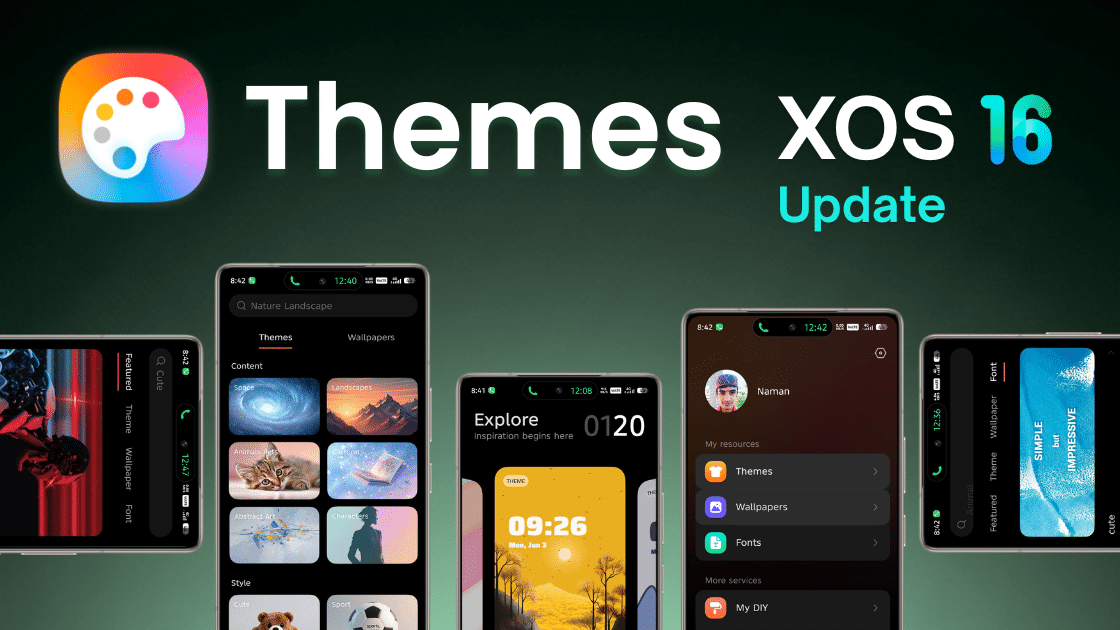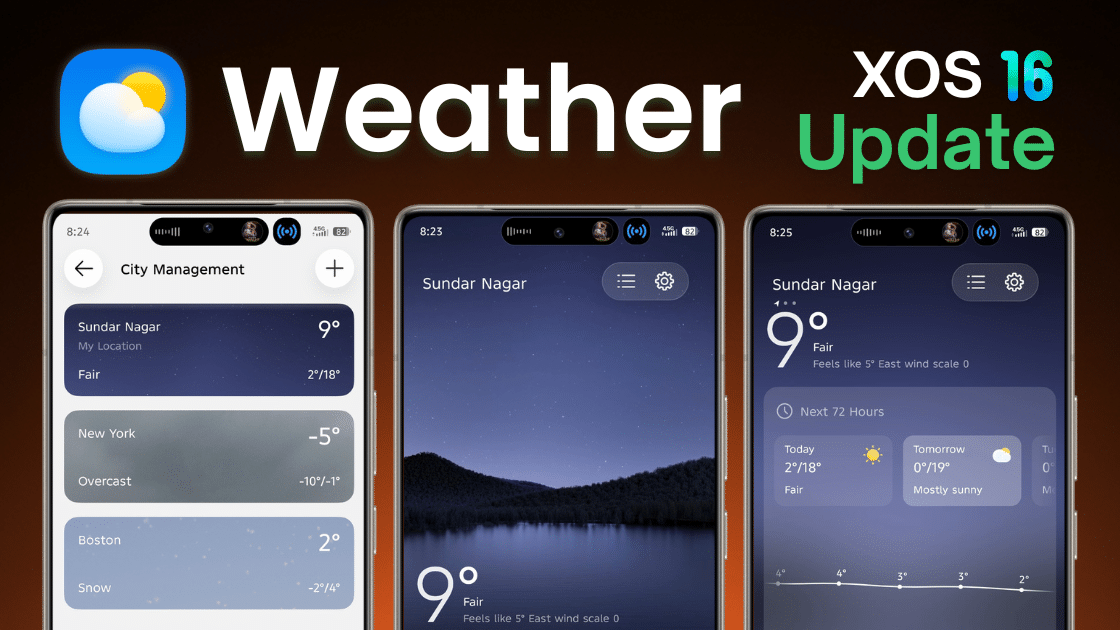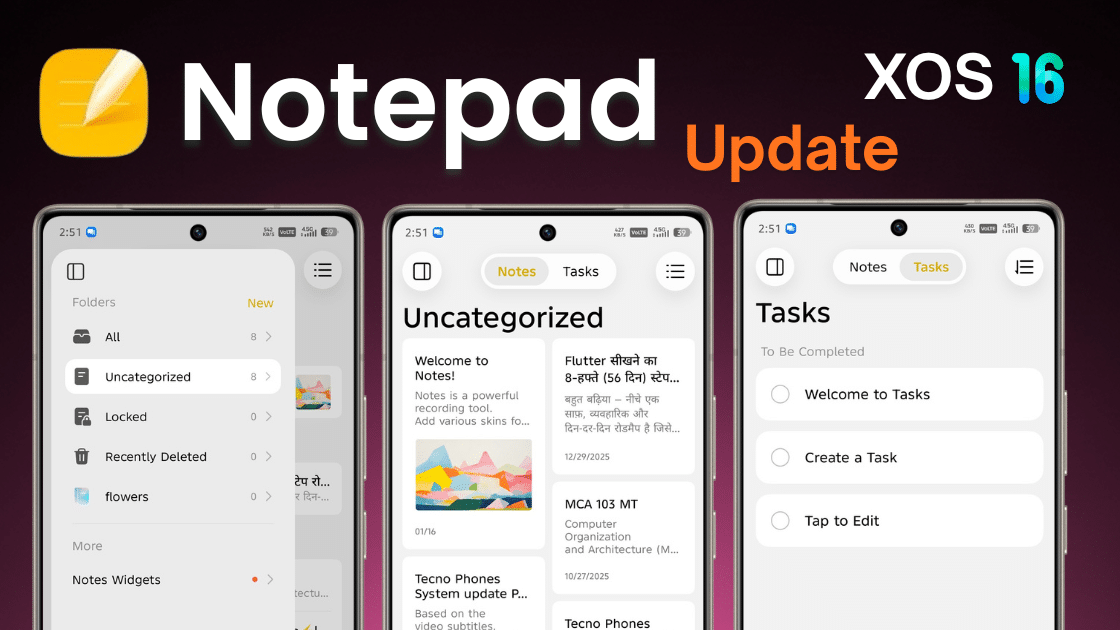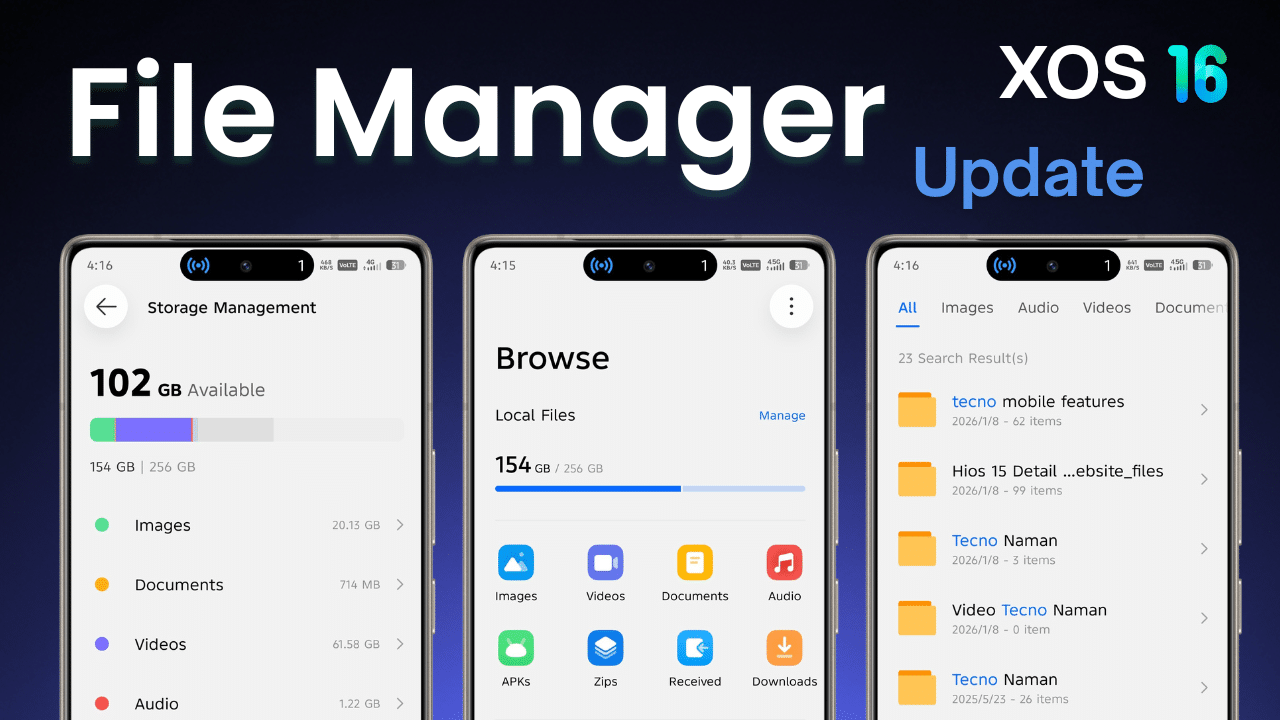
In HiOS 16 and XOS 16, system apps are getting regular updates in 2026. These updates mainly improve performance, stability, bug fixes, and UI design.
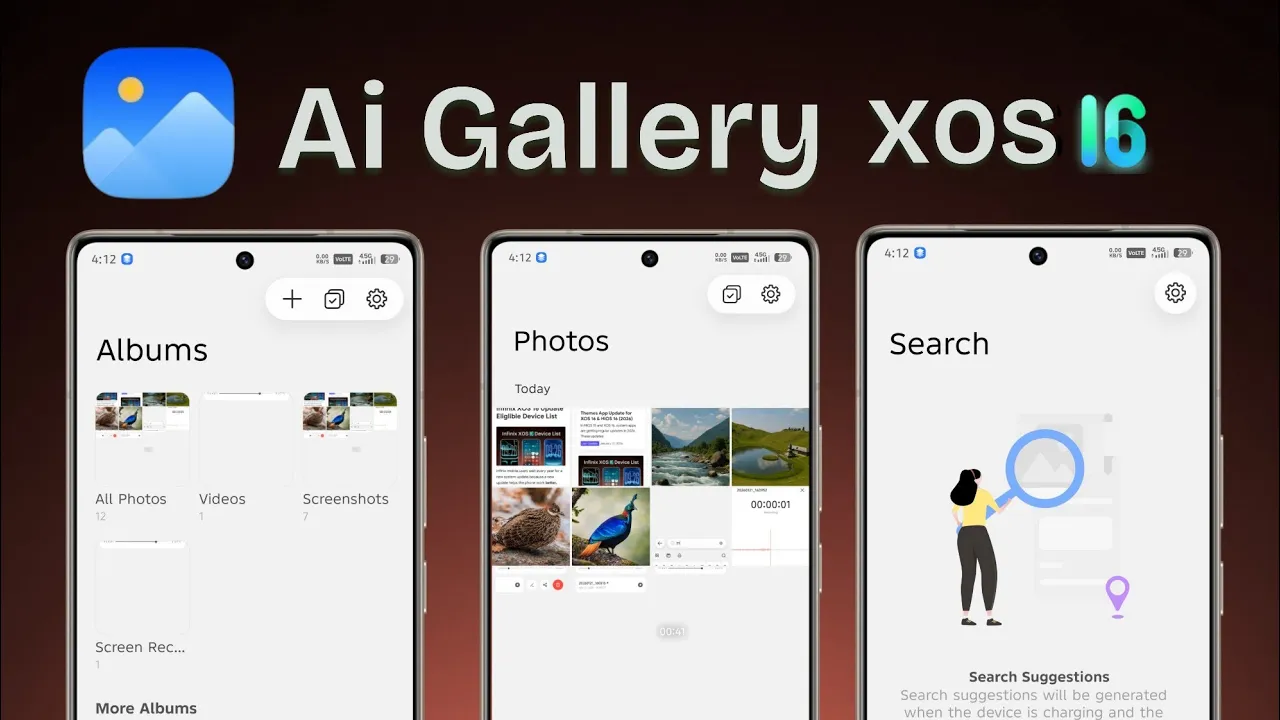
The Gallery app is one of the most important system apps because it is used daily to view photos, videos, screenshots, downloads, and memories. A stable Gallery app is very important to avoid lag, crashes, or missing media issues.
Table of Contents
Below is a short, clear, and step-wise guide so users can easily read, understand, and update the app without confusion.
Gallery App – Latest Version Details (2026)
- App Name: Gallery
- Latest Version: 16.1.0.084
- Last Updated: 20/01/2026
- Supported Devices: Tecno & Infinix smartphones
- Based On: HiOS 16 & XOS 16
What’s New in This Update?
- New Liquid UI update
- Smoother scrolling and animations
- Faster photo & video loading
- Improved album organization
- Better video playback stability
- Bug fixes and reduced lag
Download Options
There are two ways to download Tecno mobile gallery app download apk. It is also work on Infinix mobile. We are also give gallery app download apk button
1. Official Method (Recommended)
- Available from system app update section
- Safe and stable
- Sometimes downloads as ZIP, unzip to get APK
2. Manual / GDrive Method
- Use only if update is not showing officially
- Download from trusted source only
⚠️ Always try the official method first, even if it takes some time.
Steps to Install Gallery App Update (Official Method)
- Open Settings
- Go to Apps
- Tap App Updates
- Check available updates
- Find Gallery
- Tap Update
- Wait till installation finishes
✅ Another safe way is Software Update, if the Gallery app update comes bundled with it.
If Gallery App Update Is Not Showing
- Download the Gallery app APK from a trusted source
- Tap Install
- Wait for installation to complete
Steps to Install Gallery App Update (Manual Method)
- Download the update file
- Install it normally
- Restart your phone (recommended)
Restarting helps fix album refresh and loading issues.
Before Updating (Important)
On some older Tecno or Infinix devices, the new Gallery version may cause:
- App crash
- Slow loading
- Videos not playing
- App not installing or not supported
⚠️ Always make sure:
- Battery is above 30%
- Storage space is available
- You are not force-installing unsupported versions
How to Uninstall Gallery App Update
(Recommended if Any Issue Occurs)
- Open Settings
- Go to Apps
- Select Gallery
- Tap Uninstall Updates
- Confirm
✔️ The app will return to its previous stable version.
If Gallery App Is Not Working After Update
Try this order:
- Clear app cache
- Restart phone
- Check for bug-fix update
If still not working:
- Your device may not support the update
- Uninstall the update
- Wait for official fix
Final Words
Update the Gallery app only when needed and always use official update methods.
If any issue occurs, uninstall the update and wait for official support.
Simple steps + smart updating = smooth gallery performance and safe media access.